Email Tracker - Chrome Extension
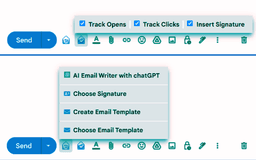
Email Tracker: Track opens, monitor link clicks, and write emails with AI.
Introduction
Email Tracker is a tool for Gmail and Google Workspace (G Suite) users that allows you to track email opens and monitor link clicks statistics.
What stands out?
Email open tracking
Link clicks statistics
AI Email Writer using chatGPT
Frequently Asked Questions
What is Email Tracker?
How to use Email Tracker?
How does Email Tracker track email opens?
Can Email Tracker track link clicks for any URL?
What is AI Email Writer?
Is Email Tracker compatible with Google Workspace?
Reviews & Feedback
Share your experience with the community
0.0
Based on 0 reviews
User Comments (0)
Sort Criteria
Order
No reviews yet. Be the first to share your thoughts!
Statistics
Monthly visits
NaN
Saved by users
0
Rating
0.0/ 5.0
Added on
—
Use Cases
- Measuring the effectiveness of email campaigns
- Tracking engagement for important emails
- Monitoring recipient activity for follow-up
- Analyzing response rates
How to Use
To use Email Tracker, simply install the browser extension and authorize it to access your Gmail or Google Workspace account. Once installed, it will start automatically tracking email opens and link clicks for all your sent emails.