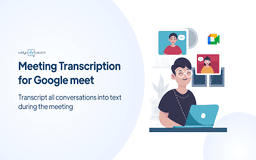
Widya Wicara - Chrome Extension
Widya Wicara enables seamless transcription in Google Meet
Introduction
Speech to Text Integration with Google Meet
What stands out?
Real-time Speech to Text Transcription
API Key Integration
Chrome Extension Usage
Frequently Asked Questions
What is Widya Wicara?
How to use Widya Wicara?
How can I access Speech to Text on Widya Wicara?
Reviews & Feedback
Share your experience with the community
0.0
Based on 0 reviews
User Comments (0)
Sort Criteria
Order
No reviews yet. Be the first to share your thoughts!
Statistics
Monthly visits
NaN
Saved by users
0
Rating
0.0/ 5.0
Added on
—
Similar Tools
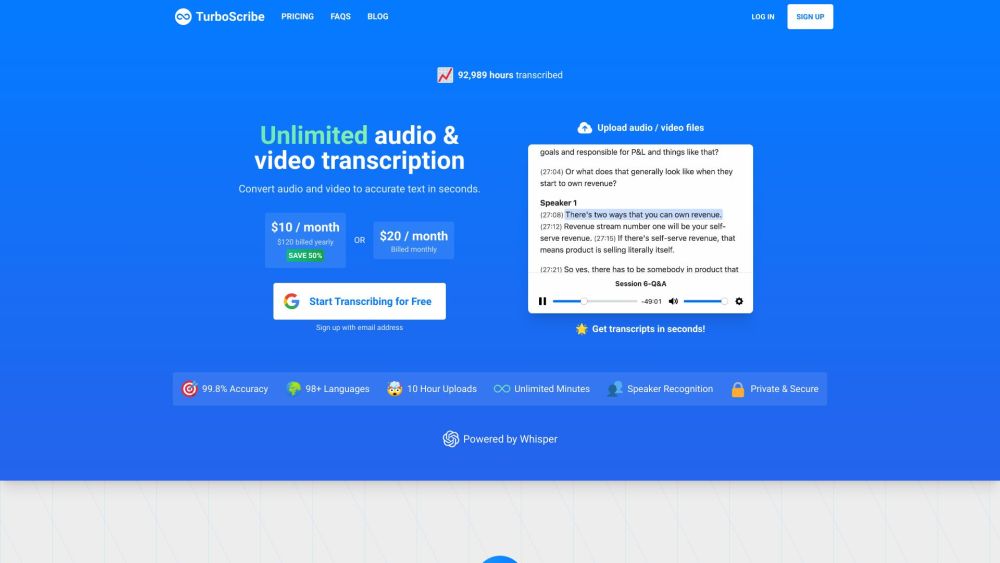
TurboScribe
Unlimited AI transcription with 99.8% accuracy in 98+ languages.
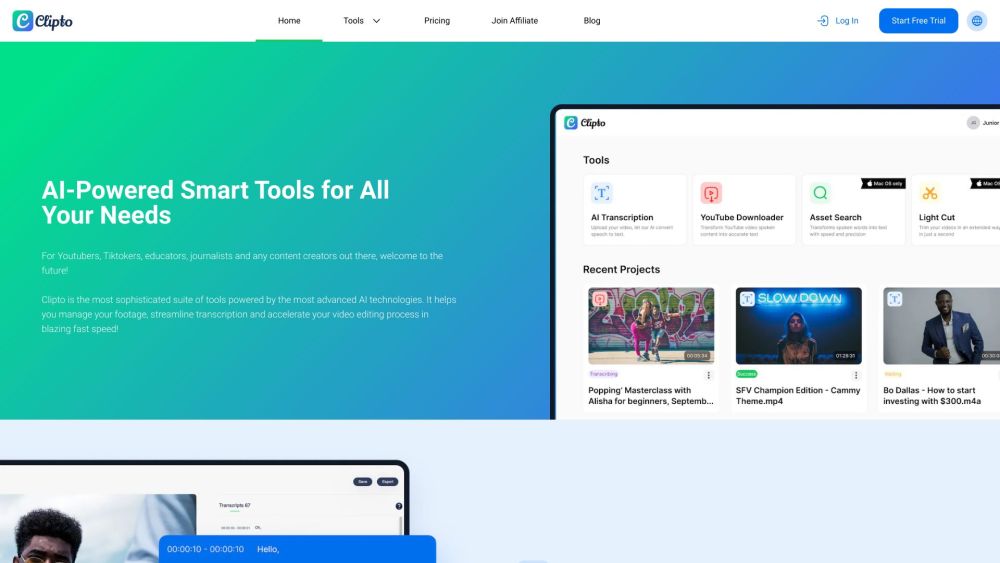
Clipto
Elevate your transcription game with our cutting-edge AI service for converting audio, video, and YouTube files into text. Try it now!
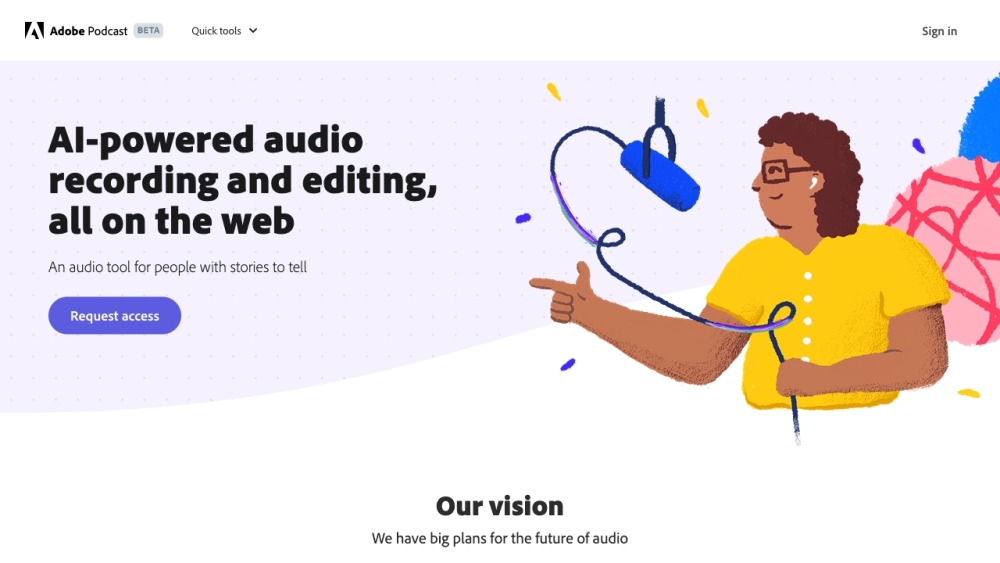
Adobe Podcast
Adobe Podcast is a web platform with AI audio features for recording, transcribing, editing, and sharing audio content.
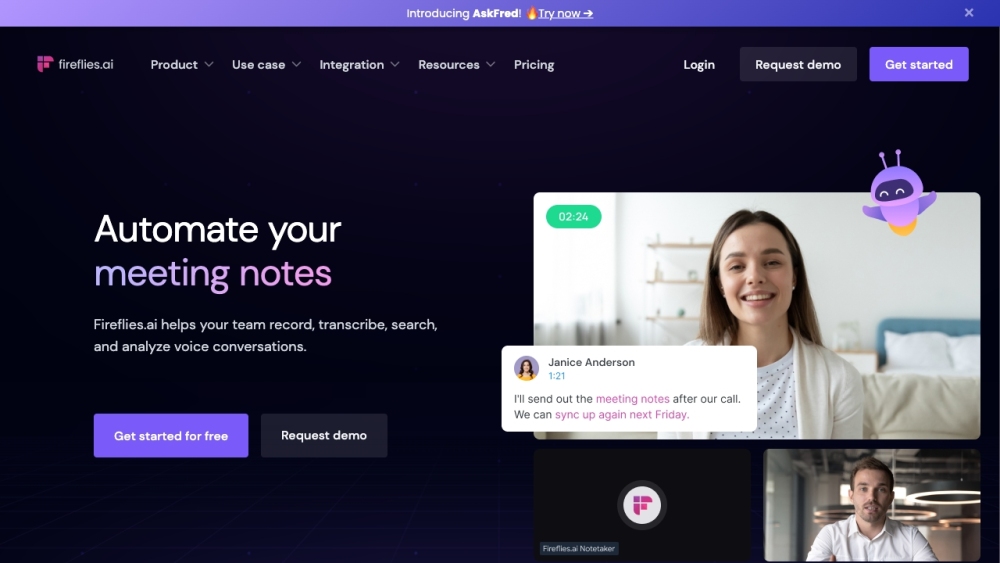
Fireflies.ai
Fireflies.ai is an innovative tool that uses artificial intelligence to transcribe, summarize, and analyze voice conversations effectively.
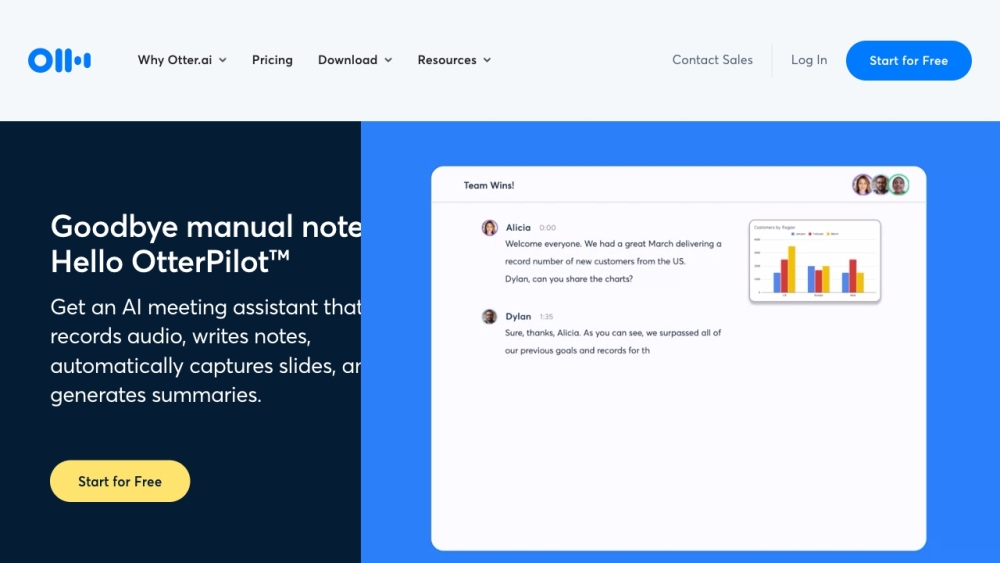
Otter.ai
Otter.ai is a platform that provides automatic meeting notes, transcriptions, and summaries, improving productivity and collaboration.
Use Cases
- Taking meeting notes in Google Meet with automatic transcription
How to Use
Integrating Speech to Text with Google Meet is straightforward: 1. Open Google Chrome extension for Speech to Text access. 2. Search for 'Widya Notulensi' in the search bar. 3. Add the Widya extension to Chrome. 4. Pin the Widya Notulensi extension to the Chrome toolbar. 5. Click on the Widya Notulensi extension and enter the API key. 6. Start Google Meeting to initiate the meeting. 7. Use the Widya Notulensi Extension to prepare notes during the meeting. 8. Enter your username and start recording. 9. Once the meeting ends, a record bar will appear on the screen. 10. Mute the microphone and stop the meeting minutes by clicking the button. 11. Save the meeting transcription using the 'download' button.