
QR-Tube
QR-Tube automates adding QR codes to YouTube videos, enhancing viewer engagement with additional content.
Introduction
QR-Tube is a powerful tool that automates the process of adding custom QR codes to YouTube videos. It allows creators to increase viewer engagement by providing easy access to additional content or promotions.
What stands out?
Automated QR code generation for YouTube videos
Customization options for QR code size, color, and styling
Personalized links for QR codes
Embedding QR codes into YouTube videos
Control over QR code placement, starting point, and duration
Frequently Asked Questions
What is QR-Tube?
How to use QR-Tube?
What is QR-Tube?
What customization options does QR-Tube provide?
How can QR-Tube benefit YouTube creators?
Does QR-Tube offer a free version?
What additional features are available in the paid version of QR-Tube?
More Information
QR-Tube Pricing
QR-Tube Pricing Link: https://qr-tube.com/price
QR-Tube Facebook
QR-Tube Facebook Link: https://www.facebook.com/
QR-Tube Twitter
QR-Tube Twitter Link: https://twitter.com/
QR-Tube Instagram
QR-Tube Instagram Link: https://www.instagram.com/
Reviews & Feedback
Share your experience with the community
0.0
Based on 0 reviews
User Comments (0)
Sort Criteria
Order
No reviews yet. Be the first to share your thoughts!
Statistics
Monthly visits
NaN
Saved by users
0
Rating
0.0/ 5.0
Added on
—
Similar Tools

Pixelcut
Easily create stunning product photos and ads with our free online design tool. Remove backgrounds and erase objects effortlessly.

Wondershare
Discover innovative tools for enhancing creativity, productivity, and efficiency with our app. Unleash your potential today!
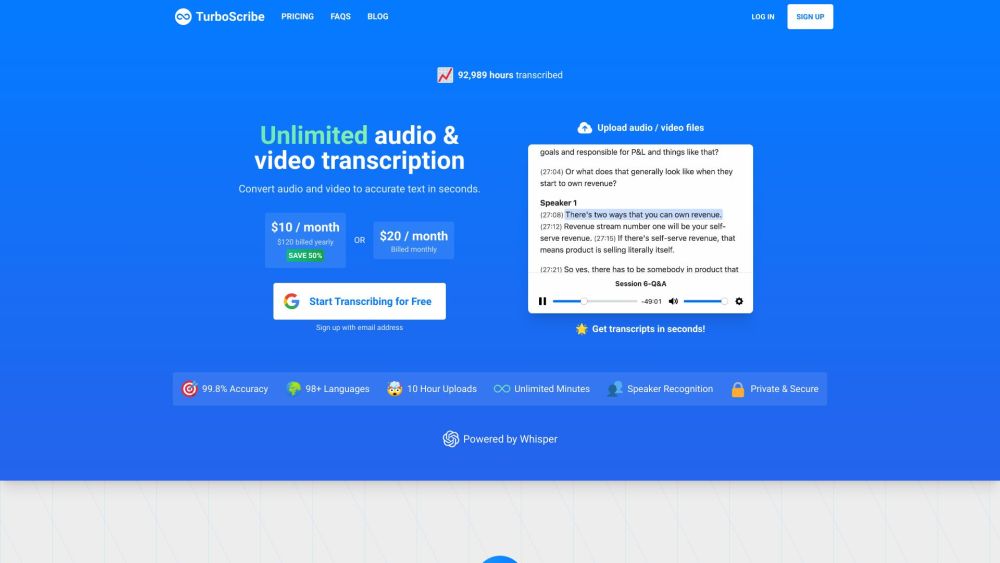
TurboScribe
Unlimited AI transcription with 99.8% accuracy in 98+ languages.

Intercom
Get quicker solutions with Automation and human assistance. Enhance support efficiency for faster issue resolutions.
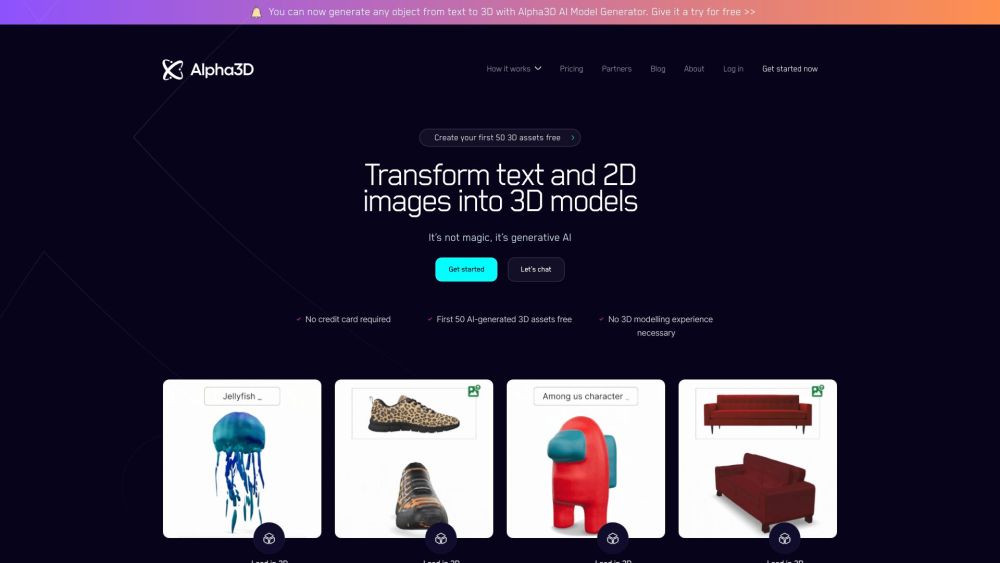
Alpha3D
Transform 2D images into 3D assets with generative AI.
Use Cases
- Increasing viewer engagement by providing easy access to additional content or promotions
- Boosting clicks from YouTube videos being watched on TV
- Adding affiliate/referral links to customizable QR codes
- Enhancing the appearance of QR codes with different styles and colors
- Embedding logos into QR codes
How to Use
1. Sign up or log in to your QR-Tube account. 2. Customize your QR code by adjusting its size, color, and styling options. 3. Generate the QR code with a personalized link. 4. Choose the video you want to embed the QR code into. 5. Specify the placement, starting point, and duration of the QR code within the video. 6. Click on 'Generate' to embed the QR code into the video. 7. Share or upload the video with the embedded QR code.